
Validate the document in item viewer
Unsubmitted documents are available in the item list. They will open automatically in the item viewer once they are acquired successfully.
The following video covers how to Validate profile fields:
Various operations can be performed on the documents while working with them in the item viewer, such as editing fields, adding annotations, and saving one or more documents.
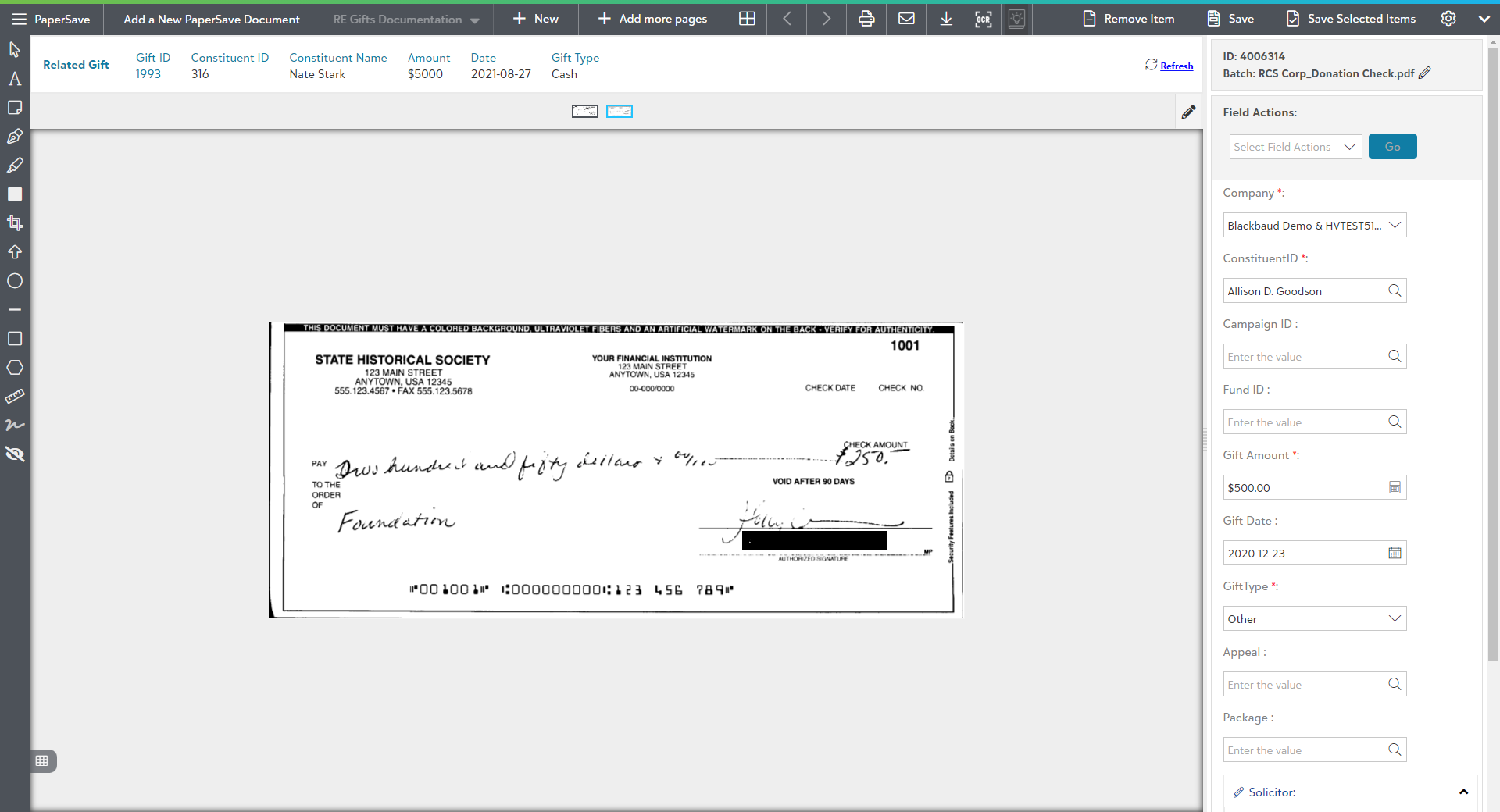
Explore the various topics for preparing and validating the unsubmitted documents from the below list:
Top-level toolbar options in the unsubmitted item viewer
The following video explains the various top-level toolbar options in the unsubmitted item viewer:
Page Manipulation View for unsubmitted items
The following video provides detailed information about the Page Manipulation View. Click here to learn in detail about Page manipulation view:
Setting Panel in the unsubmitted item viewer:
The following video covers the Settings Panel for the item viewer(unsubmitted items):
Using Image annotation options for unsubmitted items
The following video explains how to use annotations on the document in the item viewer. Click here to learn in detail about all Image annotation options: